How do I embed a Google Photos album into a website?
https://www.publicalbum.org/blog/embedding-google-photos-albums
How can I do embed my shared album from Google Photos and make preview of images on my website? How can I do that simply, without having to copy pictures or complicated search to individual image links? Here I will introduce my solution, which you can also try.
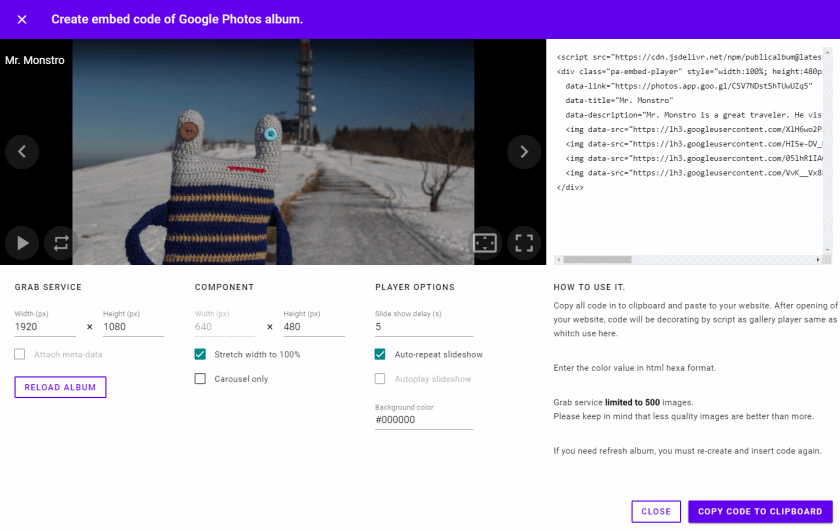
Three steps how to do it.
When I wanted to present my photos public on the web, I found out that there was no easy way to do it, in fact, there was no reasonable way.
This led me to find a way to solve it. The result is the first version of the photo viewer. This is a compilation of Google Photos image public links and javascript component “Player” for convenient viewing.
You can embed yours shared photo album from Google Photos with the code that generates a preview of your entire album with the ability to view photos easily.
1) Get album public link for sharing
In Google Photos application, you must share selected album and get link of it. Choose album – click on menu icon or open album and click on share button and select “get link”. Link look like as https://photos.app.goo.gl/somehash. Copy this link into clipboard.
2) Create code to embed album
All you need is a link from previous step. Insert to field and press “Create embed code“.
I created tool to basic manage of created code. You can setup dimmensions and some options about component. When you finish, copy result HTML code into clipboard. This code is a final stand alone HTML code – no proxy, no iframes. The only one external component is a “Player” decorator.

No comments:
Post a Comment